
The Help Desk
Don't Just Assume Your OneDrive Is Syncing
That little cloud icon in your Documents folder means more than you think. Here's how to check that OneDrive is actually running and keeping your files safe.
Why This Matters More Than You Think
Most people set up OneDrive once, see it running, and never think about it again. But OneDrive can quietly stop syncing — after a password change, a Windows update, a network hiccup, or simply because the app wasn't started. And when it stops, your files are no longer being protected in the cloud.
The good news? It takes less than a minute to check. Here's what to look for.
Step 1: Look for the Sync Icons in Your Documents Folder
Open File Explorer and navigate to your Documents folder (or any folder inside your OneDrive). Look at the small icons on the right-hand side of each file and folder — these are your sync status indicators.
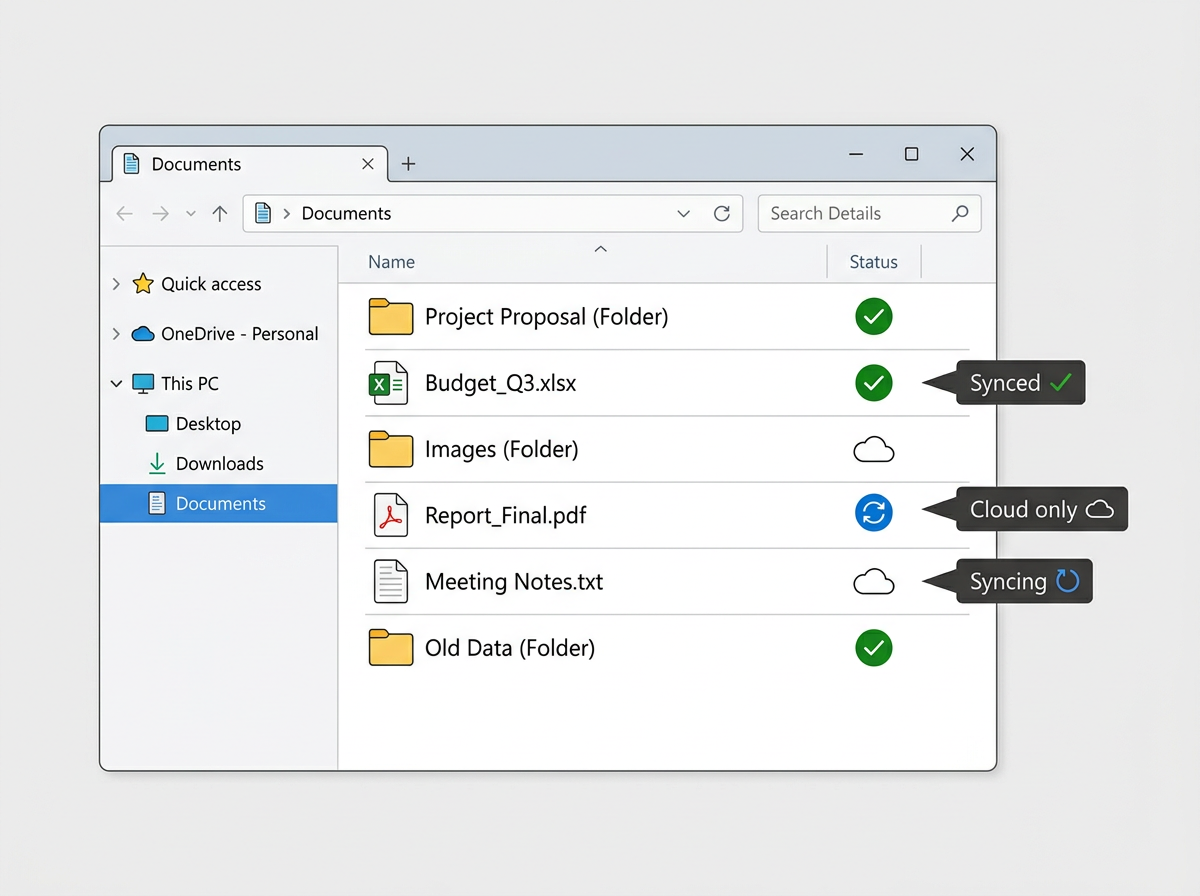
The icons on your files tell you exactly what OneDrive is doing with each one.
Green circle with a white tick
This file is synced. A copy exists both on your computer and in the cloud. You're all good.
White cloud outline
This file is stored in the cloud only and isn't currently downloaded to your device. OneDrive is running — but the file isn't stored locally.
Blue circle with arrows (spinning)
OneDrive is actively syncing this file right now. This is normal — just wait a moment for it to finish.
Red X or no icon at all
There's a problem. Either there's a sync error, or OneDrive isn't running at all. Read on to fix it.
No icons at all?
If you don't see any sync icons in your Documents folder, OneDrive likely isn't running. Skip straight to Step 3 to start it up.
Step 2: Check the OneDrive Icon in Your System Tray
Look at the bottom-right corner of your screen (the system tray, next to the clock). You should see the OneDrive cloud icon there.
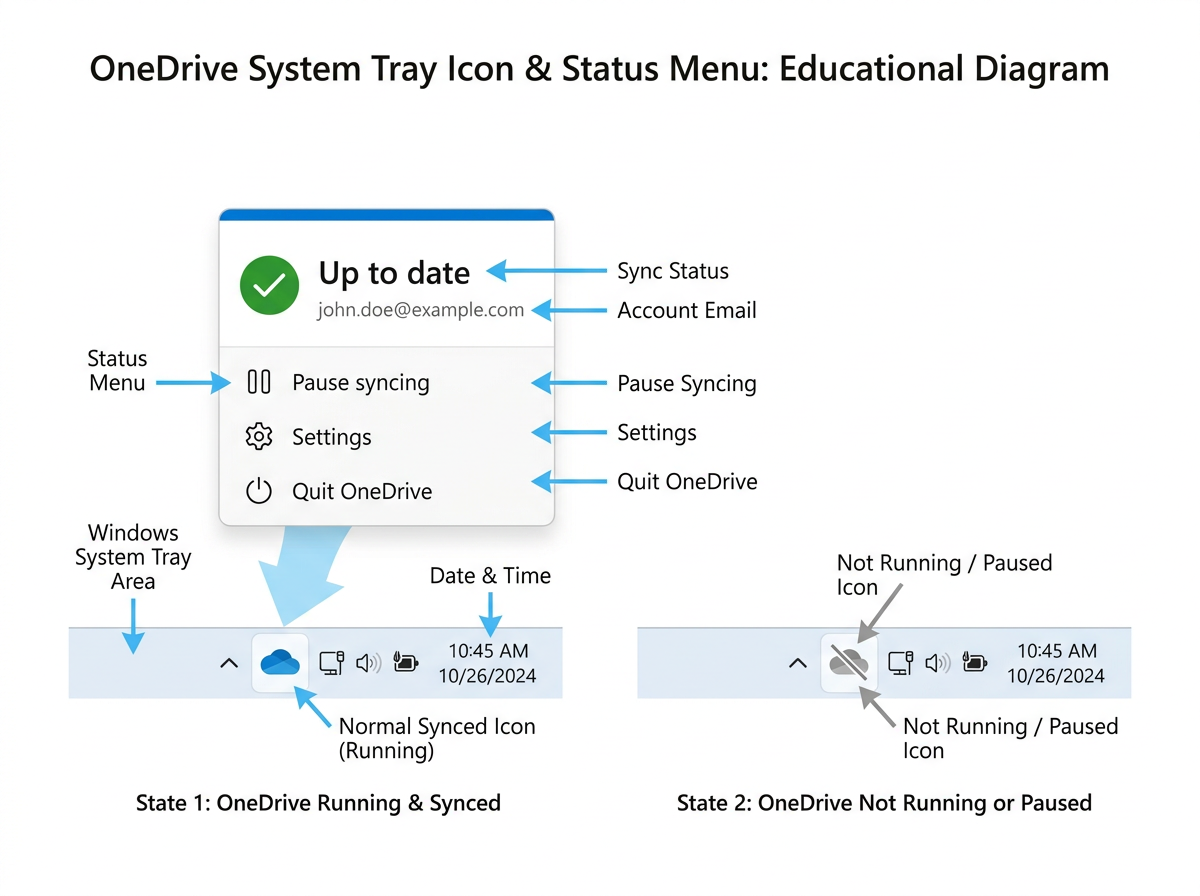
The OneDrive icon in your system tray tells you at a glance whether it's running. Click it to see the full status.
Click the OneDrive icon to open the status panel. If everything is working, you'll see a message like “Up to date” with a green tick. If you see “Syncing”, give it a few minutes to complete. If you see a warning or error message, take note of what it says.
Can't see the OneDrive icon? It may be hidden. Click the small upward arrow (“^” or “Show hidden icons”) to the left of the visible tray icons. If the OneDrive icon isn't there at all, it means OneDrive isn't running.
What the icon colours mean:
- Blue cloud — OneDrive is running and syncing normally
- White/light cloud with tick — Synced and up to date
- Yellow cloud with lightning bolt — OneDrive is paused (you may have paused it manually)
- Red cloud with X — There's an error — click for details
- No icon — OneDrive isn't running at all
Step 3: If OneDrive Isn't Running — Start It
If there's no OneDrive icon in the system tray, it's not running. This is easy to fix:
- 1Press the Windows key on your keyboard (the key with the Windows logo).
- 2Type OneDrive in the search bar.
- 3Click OneDrive in the results to launch it.
- 4Wait a moment — the cloud icon should appear in your system tray and syncing will begin. Sign in if prompted.
Step 4: OneDrive Is Running But the Icons Still Look Wrong?
Sometimes OneDrive is technically running but gets stuck — you might see files with no sync icons, or a status that never changes. The fix is to quit OneDrive completely and start it fresh.
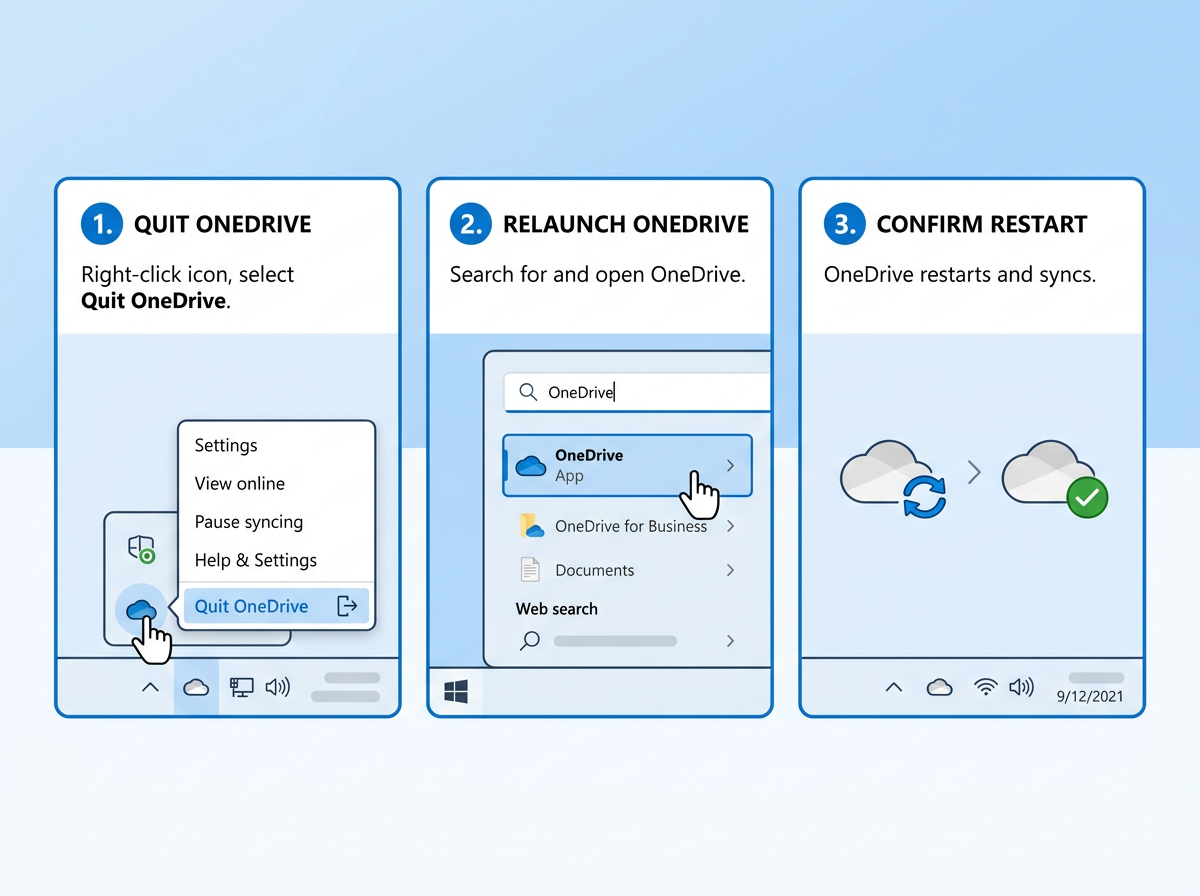
Quit OneDrive from the system tray, then relaunch it from the Start menu. It takes about 30 seconds.
- 1Right-click the OneDrive cloud icon in the system tray.
- 2Click “Quit OneDrive” (you may need to click “Settings” first, then look for the Quit option — it varies by version).
- 3Confirm when prompted. The OneDrive icon will disappear from the system tray.
- 4Press the Windows key, type OneDrive, and click it to relaunch.
- 5Give it a minute to start syncing. Check your Documents folder again — the green ticks should return.
Still not syncing after a restart?
If OneDrive starts but quickly shows a red error icon, it usually means there's a sign-in issue or a problem with a specific file (perhaps a file with a very long name, or a special character in the name). Click the OneDrive icon for more detail, or get in touch with us and we'll sort it out for you.
Quick Sync Health Check
Run through this checklist to confirm OneDrive is working as it should on your machine.
Frequently Asked Questions
How do I make sure OneDrive starts automatically every time I turn on my PC?
Right-click the OneDrive icon in the system tray, click Settings, and under the Account tab make sure 'Start OneDrive automatically when I sign in to Windows' is ticked. This is on by default but can get turned off during Windows updates.
My file has a green tick — does that mean it's backed up?
A green tick means the file is synced to OneDrive in the cloud. However, OneDrive sync is not the same as a full backup — it's a mirror. If you accidentally delete the file, it also disappears from OneDrive (though it stays in the Recycle Bin for a limited time). For proper backup protection, speak to us about a dedicated backup solution.
Some of my files show a cloud icon instead of a tick. Are they safe?
Yes — a cloud outline icon means the file is stored in OneDrive online but hasn't been downloaded to your device yet. It's accessible, but if you lose internet access you won't be able to open it until you're back online. You can right-click and choose 'Always keep on this device' to download a local copy.
I changed my Microsoft 365 password. Could that stop OneDrive syncing?
Yes, absolutely. A password change is one of the most common reasons OneDrive stops syncing silently. After any password change, click the OneDrive icon and sign in again with your new credentials.
Key Takeaways
- ✓Green tick = file is synced and protected in the cloud
- ☁Cloud outline = file is online only, not downloaded locally
- ✗No icons or red X = OneDrive isn't syncing
- !Password changes often cause silent sync failures
- ✓Quitting and restarting OneDrive fixes most stuck-sync issues
Quick Win
Set a monthly reminder to click your OneDrive icon and confirm it says “Up to date”. It takes 10 seconds and could save you from a nasty surprise later.
Worth Knowing
OneDrive syncing is not a backup. If you delete a file or ransomware encrypts your data, those changes sync to the cloud too. A dedicated backup solution keeps a separate, protected copy of your files.
Not Sure If Your Files Are Really Being Backed Up?
We can check your OneDrive setup and let you know exactly what's syncing — and what isn't. No jargon, no pressure. Just a straight answer.
Get In Touch